Skip to content

Creating a presentation often involves pulling information from various sources. You might have sales figures in an Excel sheet, customer data in a SQL database, or project updates in another file. The traditional method involves manually copying and pasting this data into your slides. This process is not only tedious but also prone to errors. Every time the source data changes, you have to repeat the entire process. The INSYNCR plugin for PowerPoint solves this problem by connecting your presentation directly to your data sources.
This guide will walk you through setting up your first data connection using the INSYNCR plugin. We will cover the types of data you can connect to, provide step-by-step instructions for creating a connection, and offer tips for troubleshooting common issues.
Why Connect Your Data to PowerPoint?
Before diving into the “how,” let’s quickly recap the “why.” Connecting your PowerPoint slides directly to a data source transforms your presentation from a static document into a dynamic, living report.
- Save Time: Eliminate the need to manually update figures, charts, and tables. A single click can refresh all the data in your presentation.
- Improve Accuracy: By pulling data directly from the source, you significantly reduce the risk of copy-paste errors or using outdated information.
- Maintain Consistency: Ensure that everyone is presenting the most current data, whether it’s for a weekly team meeting or a quarterly business review.
- Enhance Productivity: One important feature of INSYNCR is its ability to duplicate and populate slides and presentations effortlessly. Additionally, it enables exporting to various formats and supports server-side automation, ensuring a seamless document flow. This level of functionality minimizes manual effort and streamlines workflows, saving valuable time for teams and individuals.
With INSYNCR, you can spend less time on data entry and more time crafting your narrative and delivering a powerful message.
Supported Data Sources in INSYNCR
The INSYNCR plugin is built to be flexible, supporting the data sources that businesses use most. The available connections depend on your INSYNCR edition (Basic or Professional, for example, we are not covering all differences here).
- Microsoft Excel (INSYNCR Basic & Professional): This is the most common data source for many users. You can connect your presentation to specific worksheets and named ranges within an Excel file. This is perfect for financial reports, project dashboards, and performance tracking.
- Microsoft SQL Server (INSYNCR Professional): Connect directly to your company’s SQL Server databases. This allows you to pull live data from enterprise systems, like a CRM or ERP, without needing to export it to a separate file first.
- MySQL (INSYNCR Professional): Similar to SQL Server, this connection lets you tap into data stored in MySQL databases, which are popular for web applications and other business systems.
- OData Feeds (INSYNCR Professional): Connect to web-based data feeds using the OData protocol. This is useful for integrating data from services like SharePoint or other modern enterprise applications that expose their data through APIs.
Step-by-Step Guide to Setting Up a Connection
Creating a data connection in INSYNCR is a straightforward process. Once you have the plugin installed, you can set up your first connection in just a few minutes.
Step 1: Open the Data Connection Manager
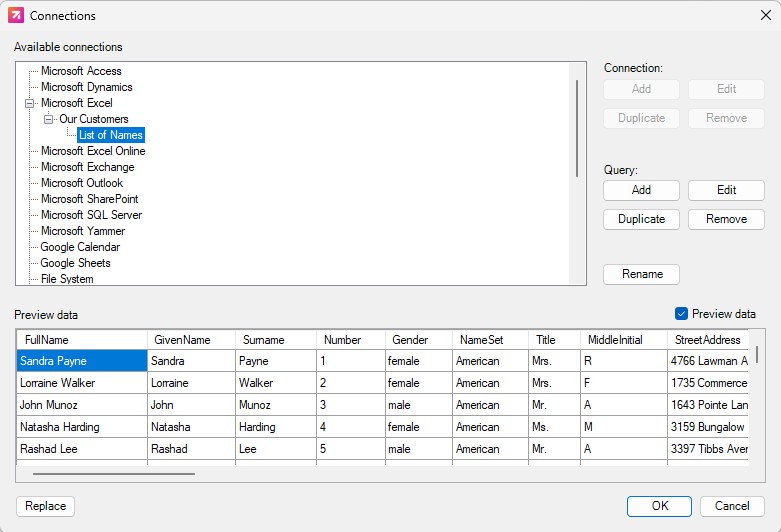
First, open PowerPoint and click on the INSYNCR tab in the main PowerPoint ribbon or menu. Within this tab, you will find a button labeled Connections in the Presentation group. Clicking this button will open the Data Connection Manager window. This is the central hub where you will manage all your data sources for the presentation.

Step 2: Choose Your Data Source Type
The first task is to choose the type of data source you want to connect to. The options you see will depend on your INSYNCR license and needs.
- Select Microsoft Excel File if your data is in an
.xlsxor.xlsfile. - Select Microsoft SQL Server Database or MySQL if you are connecting to a database.
- Select OData Feed if you are connecting to a web-based data service.

Step 3: Add a New Connection
This is the most important step. The details you provide here tell INSYNCR where to find your data.
In the Data Connection Manager window, click the Add button in the Connection section. This will open a form where you can enter connection properties like username and password (depending on your data source type). Always test the connection to make sure that your properties are working.
For an Excel Connection:
- You will be prompted to browse for your Excel file. Click the browse button and navigate to the location of your spreadsheet on your computer or a shared network drive.
- It’s a best practice to use a UNC path (e.g.,
\\server\share\file.xlsx) for files on a network drive. This ensures the connection works for other users who open the presentation.
For a SQL Server or MySQL Connection:
- Server Name: Enter the name or IP address of the database server.
- Authentication: Choose how you will log in to the database. “Windows Authentication” uses your current Windows login, while “SQL Server Authentication” requires you to enter a specific username and password.
- Database Name: Select the specific database you want to connect to from the dropdown list. You can click the “Test Connection” button to verify that your credentials are correct and that INSYNCR can reach the server.
Click OK to proceed.

Step 4: Adding a Query to Retrieve Data
Once the database connection is established, the next step is to define the query that will retrieve the data you need. Click the Add Query button. INSYNCR allows you to choose from several options depending on your requirements:
- Excel Sheet and Range: If your data source is an Excel file, specify the sheet name and the cell range containing the data.
- Table or View: If working with a database, select a specific table or view from the list to load the desired data.
- Custom SQL Statement: For more advanced scenarios, you can write your own SQL query to extract specific data. Enter your SQL statement in the provided editor and ensure it adheres to the database schema.

Step 5: Name Your Connection and Query
The final step is to give your data connection and query a descriptive name. This name will appear in the Data Connection Manager and will help you identify the source when you start linking data to shapes. For example, instead of “New Connection,” use something like “Q4 Sales Data (Excel)” or “Customer Database (SQL).”
Click Finish to save the connection. You will now see your new connection listed in the Data Connection Manager. You can close this window and begin linking data to your slides.
Step 6: Preview Your Data
After defining your query, check the preview of the data. This step ensures that your query is correctly configured and returns the expected results. Once satisfied, click OK to proceed and start linking shapes to this data.

Troubleshooting Common Connection Issues
Sometimes, you might run into an issue when setting up a connection. Here are a few common problems and their solutions:
- Issue: “File Not Found” for an Excel connection.
- Solution: This usually happens if the file has been moved, renamed, or is located on a network drive that is mapped differently for other users. Ensure the file path is correct. Using a UNC path for network files is the most reliable method.
- Issue: “Cannot connect to SQL Server.”
- Solution: This is often a credential or network issue. Double-check the server name, username, and password. Confirm that your computer can access the database server over the network. Your IT department may need to open a port in the firewall. The “Test Connection” button is your best tool for diagnosing this.
- Issue: The database dropdown is empty.
- Solution: This indicates that the credentials you provided were accepted by the server, but the user account does not have permission to view or access any databases. Contact your database administrator to ensure your account has the necessary permissions.
- Issue: The connection works for me, but not for my colleague.
- Solution: This is typically a permissions or pathing issue. For file-based connections like Excel, make sure your colleague has access to the file location. For database connections, ensure their user account has been granted access to the database.
Conclusion
Setting up data connections is the first and most critical step toward automating your PowerPoint presentations. The INSYNCR plugin makes this process simple and accessible, whether your data lives in a simple Excel file or a complex enterprise database. By establishing this link, you unlock the ability to create reports and dashboards that are always accurate and up-to-date, freeing you to focus on analysis and storytelling.
Now that you’ve set up your connection, the next step is to start linking this data to text boxes, tables, and charts on your slides.