 Skip to content
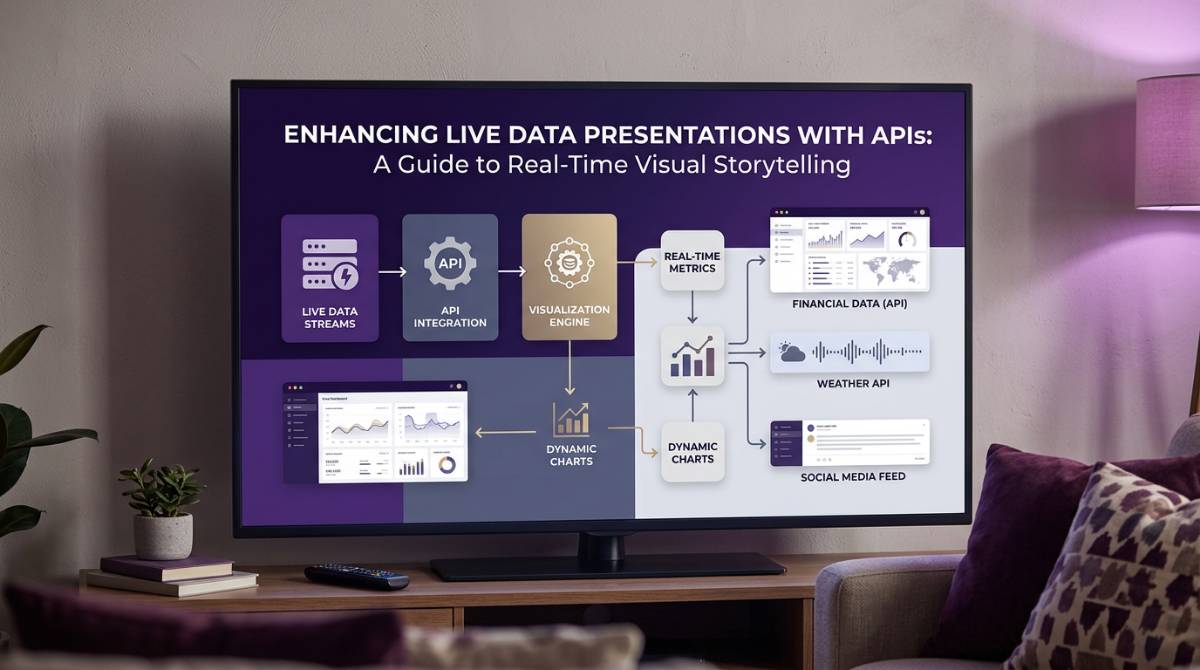
Pulling real-time data from SQL databases, Salesforce, Excel Online, or REST/JSON endpoints directly into PowerPoint sounds like a dream for anyone who has spent hours copying figures into slides. That dream is now practical reality through APIs for live data presentations—structured interfaces that connect your presentation tools to the systems where your numbers actually live.
This guide focuses on business reporting: finance decks, private equity portfolio updates, marketing dashboards, HR headcount reports, and research briefings. We’re not talking about the W3C Presentation API that handles screen casting and presenting web content to secondary displays. In the context of the Presentation API, a presentation display refers to a graphical or audio output device—such as a monitor, projector, or connected screen—accessible to the user agent via specific connection technologies. The Presentation API enables a controller page to show a presentation page on a presentation display and exchange messages with it. It is standardized by the Second Screen Working Group, and includes features such as the presentation controllers monitor, which allows monitoring and managing multiple presentation controllers and displays. However, this article focuses on the data integration layer that feeds fresh figures into your slides, rather than on presentation display management or controller monitoring.
Why does this matter in 2026? Reporting cycles have compressed dramatically. Monthly management packs, weekly sales stand-ups, quarterly board presentations, and investor updates all demand current numbers. The State of Analytics 2026 report highlights that organisations are re-engineering their BI pipelines with event-driven architectures to shrink time-to-decision intervals. Sub-minute latency is becoming the expectation, not the exception.
Consider a concrete example: a 40-slide monthly financial deck. Manually producing this typically consumes 6–8 hours of analyst time per cycle—exporting from multiple systems, wrangling in Excel, then copy-pasting charts and figures into PowerPoint. Over 12 months, that’s 72–96 hours on a single recurring report. Scale that across weekly decks, quarterly board packs, and ad-hoc investor requests, and you’re looking at 200+ hours annually spent on repetitive data manipulation.
INSYNCR is a PowerPoint plugin that addresses this directly. It connects slides to live data sources via APIs, turning static reports into dynamic, auto-refreshed presentations without requiring you to learn a new tool or abandon your existing templates; its licensing model, supported platforms, and data integrations are designed specifically for collaborative, API-driven reporting workflows.

What Is an API in the Context of Live Data Presentations?
An API (Application Programming Interface) is a standardised contract between two software systems. In the context of presentations, it’s a structured way to fetch numbers, text, and chart data from your systems of record—databases, CRMs, spreadsheets, analytics platforms—and deliver them directly into your slides.
Think of an API as replacing the old workflow of “export to CSV, manipulate in Excel, copy into PowerPoint” with a direct pipeline: your slide placeholder asks the source system for data, receives a structured response (typically JSON), and displays it.
Here are concrete examples of APIs commonly used for presentations in 2024–2026:
-
REST/JSON endpoints: The dominant pattern for modern SaaS platforms. Salesforce exposes opportunities and reports through SOQL queries wrapped in JSON responses. HubSpot, Workday, and Power BI all offer REST APIs returning structured data.
-
OData feeds: A Microsoft-originated protocol still prevalent in enterprise ecosystems. The canonical example is the Northwind sample database at services.odata.org, which serves queryable entities like SalesByCategory. Power BI and Dynamics 365 both support OData.
-
GraphQL: Flexible querying for complex schemas, increasingly popular with modern data warehouses where you need to specify exactly which fields to retrieve.
-
Internal JSON/XML services: Many ERP systems like NetSuite or Dynamics 365 expose internal APIs for financials, inventory, and operational data.
-
Direct database connections: JDBC/ODBC connections to SQL Server, PostgreSQL, or MySQL, using parameterised queries to pull specific views or aggregates.
It’s important to clarify a common confusion. The W3C Presentation API is a browser specification that handles presentation display availability and user agent web browsers connecting to secondary screens for presenting web content. A controlling browsing context uses the presentation api to access presentation displays through an implementation specific discovery mechanism.
The Presentation API exposes a presentation attribute that allows scripts to interact with ongoing or available presentation sessions. It uses presentation availability objects, which are created and monitored (for example, via getAvailability) to determine if compatible presentation displays are available. The API also provides a presentation controllers promise for managing asynchronous operations related to presentation controllers, and supports event handler idl attributes (such as onconnectionavailable) for event-driven communication.
Additionally, the Presentation API supports both wired and wireless technologies for connecting to presentation displays, and can operate in two modes: 1-UA mode (where the user agent renders the presentation) and 2-UA mode (where the presentation display renders the content itself). The API uses presentation message type to distinguish between text and binary data, and manages connection status and task scheduling through presentation connection state and presentation task source.
That’s fundamentally different from what we’re discussing. APIs for live data presentations are about data ingestion—getting numbers from source systems into slide elements. Tools like INSYNCR sit on top of these data APIs to bind slide placeholders, charts, and tables to API responses, abstracting the technical complexity so users can configure connections through point-and-click interfaces rather than writing code.
Typical Live Data Sources and Presentation Displays for Business Presentations
Most organisations already have the data they need for presentations. The challenge isn’t data availability—it’s connecting that data reliably to PowerPoint without manual export-import cycles.
Here are the concrete data sources used for automated presentations in real-world deployments:
-
Excel and CSV files on SharePoint/OneDrive: Monthly P&L statements with named ranges like “CurrentMonthRevenue,” marketing funnel sheets tracking leads-to-conversion ratios, HR headcount files updated by payroll systems. Microsoft Graph’s API enables direct reads from these files without downloading.
-
Relational databases (SQL Server, PostgreSQL, MySQL): Operational KPIs and historic trend data exposed through read-only views such as vw_MonthlyKPIs. These views can span years of data and support parameterised queries filtered by date, region, or business unit.
-
Cloud CRM and ERP systems via native APIs: Salesforce’s Bulk API for large datasets, Dynamics 365’s Web API for customer insights, HubSpot’s CRM API for engagement metrics, Workday’s Reporting API for workforce analytics, NetSuite’s SuiteTalk for financials.
-
Analytics and BI platforms: Google Analytics 4’s Data API for real-time session metrics, Adobe Analytics’ Report API, Power BI REST APIs for dataset exports, Tableau’s Metadata API. Internal data warehouses or lakehouses exposed via REST or OData also fall into this category.
-
Public data APIs: Federal Reserve Economic Data (FRED) API for macroeconomic indicators like GDP growth, SEC EDGAR APIs for regulatory filings in investor decks, industry benchmark services.
APIs and connectors standardise how tools like INSYNCR read from these sources. Users don’t need to write SQL, handle pagination, or manage authentication tokens manually. The presentation tool queries the source through configured connectors, receives structured responses, and maps fields to slide elements—exactly the type of workflow covered in step‑by‑step software guides for data‑driven PowerPoint automation.
Doing Live-Style Reporting by Hand: Time and Risk
Picture a finance team producing a 60-slide monthly performance pack for management, due on the 5th working day of each month. This deck includes revenue by region, expense breakdowns, headcount trends, pipeline forecasts, and variance analyses.
Here’s what the manual workflow looks like:
-
Export raw data from 4–5 siloed systems: Salesforce for pipeline, SQL Server for costs, Google Analytics for web traffic, Workday for headcount, Excel files for budget comparisons.
-
Wrangle each dataset using VLOOKUPs, PivotTables, or Power Query in Excel—typically 1–2 hours per dataset.
-
Copy-paste 30+ charts and 100+ figures into PowerPoint, one at a time.
-
Align formatting, recolour charts to brand specifications, validate totals match source data.
-
Review for errors, fix broken links, regenerate charts when data changes.
Typical effort: 4–10 hours per report cycle for a single analyst. Multiply by 12 months and you’re looking at 50–120 hours annually on one recurring deck.
But that’s just the monthly management pack. Consider the full reporting calendar:
-
Weekly sales decks: 2–4 hours each, 50 cycles per year = 100–200 hours
-
Quarterly board packs: 8–12 hours each, 4 cycles per year = 32–48 hours
-
Investor updates: variable, but often 4–6 hours per instance
-
Ad-hoc executive requests: unpredictable but frequent
The risks compound this burden:
-
Outdated figures: February close data lingers in a March board pack because someone forgot to refresh an export. This occurs in 20–30% of cycles per informal finance surveys.
-
Rounding inconsistencies: Excel manipulations introduce 1–2% variances in revenue totals that don’t match source systems.
-
Broken links: Template changes break connections to external workbooks, requiring manual fixes.
-
Formatting drift: Charts lose brand colours, fonts change, layouts shift between slides.
The organisational impact is significant. Decisions get delayed while teams verify numbers. Analysts log 10–15 extra hours before board meetings and similar manual finance reporting workflows quietly consume hundreds of hours each quarter. Trust erodes when executives spot discrepancies between slides and the data they’ve seen in other reports.

Disadvantages of Manual, Non-API-Based Workflows
Beyond lost time, manual reporting actively introduces strategic and operational problems that affect business outcomes.
Accuracy issues: Copy-paste errors are inevitable when handling hundreds of figures. A common scenario: using an old export from 10 March 2026 instead of the final close from 12 March 2026, inflating or deflating figures by 2–5%. Studies from the early 2020s pegged manual reporting error rates at 88% for complex decks with multiple data sources.
Version chaos: Email chains proliferate with filenames like “MarchDeck_v7_final_FINAL.pptx.” Nobody is certain which deck reflects the latest data. Per BI maturity assessments, 40% of teams report regularly using stale document versions.
Scalability limits: Personalised decks for 50+ clients, regions, or portfolio companies become impossible to maintain if each must be edited by hand every week. You either sacrifice personalisation or hire additional headcount.
Brand inconsistency: Rushed last-minute edits yield misaligned logos, off-palette charts, and inconsistent fonts. The polished appearance that executives expect deteriorates under time pressure.
Security and compliance risks: Raw CSV exports get saved locally, emailed outside secure systems, or sit unencrypted on laptops. This creates exposure under GDPR, SOX, and industry-specific regulations, with average fines reaching $4.5M per incident in 2026.
Employee burnout: Highly qualified analysts—averaging $120K salaries—spend 20–30% of their time on data manipulation instead of analysis and insight generation. This stifles innovation and drives talented people toward less tedious roles.
The core problem isn’t that manual work is difficult. It’s that manual work doesn’t scale, doesn’t protect against errors, and doesn’t respect the value of analyst time.
How Presentation API Enables True Live Data Presentations
APIs allow presentation tools to refresh content directly from source systems at file-open time, on demand, or on a schedule. This transforms slides from static snapshots into live views of current data.
Here’s how the binding works:
-
A slide placeholder (text box, table, or chart) is configured to reference a specific data field.
-
When refresh is triggered, the presentation tool queries the API endpoint.
-
The API returns a structured response (typically JSON), such as: {“revenue”: 1250000, “region”: “EMEA”, “trend”: [120000, 115000, 130000]}
-
The tool parses this response and populates the corresponding slide elements.
Refresh triggers can take several forms:
-
On open: Data pulls automatically when the file is opened, ensuring current-month figures.
-
On demand: A button click triggers refresh, useful during live meetings.
-
Scheduled intervals: Every 5 minutes for dashboards displayed on meeting room screens.
Consider a practical example: a revenue-by-region bar chart in PowerPoint linked to a SQL view called vw_Revenue_Current. The query includes a parameter that filters to the current month using GETDATE(). When the presentation opens in March 2026, the chart shows March data. When it opens in April, it shows April data. The slide design never changes—only the numbers do.
Conditional formatting adds another layer. Metrics can be coloured red, amber, or green based on thresholds:
-
Revenue < 90% of target: red fill
-
Revenue 90–110% of target: amber fill
-
Revenue > 110% of target: green fill
These rules apply dynamically to live data, eliminating the need for manual colour changes each cycle.
The standardisation benefit is crucial. Instead of writing custom scripts for each data source—one for Salesforce, another for SQL, another for Google Sheets—teams use connectors with field mappings. This abstraction layer means a finance analyst can configure data bindings without involving developers for each new report.
Key API Technologies and Connectivity Patterns
Not all APIs look the same, and understanding the common patterns helps when planning automation projects.
Technical Note:
The Presentation API leverages implementation specific connection technology (such as HDMI, Miracast, or network-based methods) to establish and manage communication channels encountered during message exchange between devices. It handles how binary data is transmitted and uses the url attribute to specify the presentation URL for establishing or reconnecting sessions. The API defines presentation api tasks and presentation api task t to manage presentation workflows, supporting the ability to exchange messages internally between controller and presentation contexts. User agent hosting is central, with the user agent acting as a proxy or renderer depending on the mode; remote user agent, destination browsing context, and destination user agent are key concepts in multi-device scenarios.
The API supports incoming presentation connections, multiple controlling pages, default presentation request, and request presentation workflows. A valid presentation identifier consists of alphanumeric ASCII characters, ensuring secure and reliable connections. The specification defines behavior for interoperability and uses following partial interface definitions to clarify implementation requirements. Code requests presentation and code examples (examples assume certain configurations) are provided for clarity. Note web developers and note receiving user agents: follow best practices and requirements for robust implementations. The specification references terms exported from other specs, and such a display refers to any compatible output device (e.g., projector, monitor, network-connected TV). The message attribute in the PresentationConnection interface is used for reliable message exchange between controlling and receiving contexts.
REST/JSON APIs
REST dominates modern SaaS interactions, accounting for 80%+ of enterprise API traffic per 2025 analyses. Key characteristics:
-
Endpoints return structured JSON, such as https://api.salesforce.com/v58.0/reports/00Oxx0000001abc/
-
Authentication typically uses OAuth2 bearer tokens or API keys
-
Pagination handles large datasets through offset/limit parameters
-
Nested objects support denormalised presentation data
GA4’s Data API (/v1beta/reports:run) returns metrics like sessions by channel, ready for chart consumption. Salesforce’s query endpoint accepts SOQL for precise filtering.
OData Feeds
OData is a web standard embedded in Microsoft ecosystems, supporting SQL-like queries via URL parameters:
https://services.odata.org/Northwind/Northwind.svc/Orders?$filter=ShipCountry eq ‘UK’&$select=OrderID,Freight&$orderby=OrderDate desc
This pattern lets presentation tools request filtered aggregates without backend changes. Power BI and Dynamics 365 both support OData natively.
Direct Database Connections
For on-premise data, JDBC/ODBC connections to SQL Server, PostgreSQL, or MySQL remain common. Best practices include:
-
Parameterised SQL queries (SELECT * FROM vw_KPIs WHERE period = ?)
-
Read-only service accounts with minimal permissions
-
Views that pre-aggregate data for presentation performance
Spreadsheet APIs
Microsoft Graph’s API (/me/drive/items/{id}/workbook/tables) enables reads from Excel files on SharePoint or OneDrive. Google Sheets API v4’s spreadsheets.values.get retrieves named ranges. Both eliminate the need to download files before refreshing slides.
Scheduled vs On-Demand Fetching
Two architectural patterns emerge:
| Pattern | Description | Best For |
|---|---|---|
| Scheduled caching | Nightly ETL loads data to a warehouse; slides query the warehouse | Stable, governed data; large datasets |
| Pure on-demand | Slides query source systems directly at refresh time | Volatility-tolerant use cases; smaller datasets |
| REST API latency typically runs under 500ms for well-designed endpoints, making on-demand fetching viable for most presentation scenarios. | ||
 |
Presentation Connection: Linking Data Sources to Presentation Layers
A robust presentation connection is at the heart of any live data presentation workflow. In the context of the Presentation API, a presentation connection acts as the bridge between your data sources and the presentation layer—enabling real-time updates and seamless message exchange between the controlling browsing context (the page or tool initiating the presentation) and the receiving browsing context (the destination where the presentation is displayed).
Each presentation connection is represented by a PresentationConnection object, which includes key attributes such as a unique presentation identifier, the presentation URL, and the current connection state. This setup ensures that every live data session is uniquely tracked and managed, allowing for precise control and monitoring.
To establish a presentation connection, the controlling user agent (such as your PowerPoint plugin or web browser) initiates a PresentationRequest, specifying the desired presentation URL and any necessary parameters. The user agent then selects an available presentation display and establishes a secure, reliable channel for data exchange. This process is implementation-specific, meaning the underlying technology may vary (from WebSockets to proprietary protocols), but it must always support reliable, in-order two-way messaging for both text (DOMString) and binary data.
A key benefit of this architecture is the ability to send and receive human readable messages describing the current state, errors, or updates—making it easier for users to understand what’s happening at every stage. For example, if a connection fails, the system can provide a clear, human readable message explaining the issue, such as “Unable to connect to the data source. Please check your network connection or presentation identifier.”
By leveraging the presentation connection model, modern presentation APIs empower users to request presentations, manage multiple live data feeds, and ensure that every update is reflected instantly on the receiving browsing context—whether that’s a conference room display, a remote user’s screen, or a shared dashboard.
Presentation Displays: Delivering Live Data Across Devices and Screens
Presentation displays are essential for sharing live data across a variety of devices and screens, making your presentations more dynamic and interactive. The Presentation API aims to make it easy for web applications and plugins to access and utilize available presentation displays—whether they’re projectors, external monitors, smart TVs, or wireless devices like Chromecast and AirPlay.
With the rise of hybrid work and distributed teams, the ability to present live data on any available screen is more important than ever. Presentation displays can be connected through a range of technologies, including HDMI, DVI, Miracast, DLNA, and other network-based protocols. The presentation api enables a controller page (such as your PowerPoint session) to launch a presentation page on a selected display and exchange messages in real time, ensuring that everyone sees the most up-to-date information.
Monitoring presentation display availability is handled by the PresentationAvailability object. This object provides a human readable string explaining whether any available presentation displays exist for your current setup and presentation request URLs. For example, if a suitable display is detected, the system might show “Presentation display available: Conference Room TV.” If not, it could display “No available presentation displays found. Please connect a device.”
This continuous availability monitoring allows users to adapt their workflow—choosing the best available screen for their audience and ensuring that live data presentations are always accessible, regardless of the device or location. By leveraging the presentation api, organizations can deliver consistent, branded, and interactive presentations across all their screens, enhancing collaboration and decision-making.
Automating Recurring Reports and Presentations with APIs
Recurring cycles dominate business reporting: weekly sales stand-ups, monthly management reports, quarterly board packs, annual budgeting decks. Each follows the same pattern—new numbers, same structure.
The automation model centres on reusable, data-driven slide templates:
-
Layout and brand elements are fixed once and approved.
-
Data placeholders are linked to APIs and driven by parameters (date, region, client, portfolio company).
-
Refresh or regeneration produces current content without redesigning slides.
Batch or bulk generation extends this further. From a single template and a list of parameter values, you can automatically create dozens or hundreds of variations:
-
One deck per sales region
-
One deck per portfolio company
-
One deck per client account
-
One deck per product line
Example timeline for a private equity firm:
-
End of quarter (Day 0): Data closes in portfolio company systems
-
Night (Day 0 → Day 1): Automated job runs, querying NetSuite SuiteQL for each of 30 companies
-
Morning (Day 1): 30 personalised KPI decks in PPTX and PDF format, ready for review
-
Day 2: Partners review, add commentary, distribute to LPs
Once the template is tested and locked, future cycles become “one-job” runs rather than rebuilds. The approval process shifts upstream to template validation, not downstream to checking every number.
Export options matter for distribution workflows:
-
PPTX: For collaborative editing before final distribution
-
PDF: For fixed reports with no risk of accidental changes
-
MP4: For auto-playing video summaries or narrated briefings
INSYNCR: Using APIs and Code Examples to Bring Live Data into PowerPoint
INSYNCR is a specialised PowerPoint plugin designed for live data presentations and recurring reporting automation. It bridges the gap between the APIs your systems expose and the slides your stakeholders consume, supported by a central help center with technical articles, release notes, and FAQs for teams rolling out reporting automation at scale.
The core idea is straightforward: users design on-brand PowerPoint templates once, then connect shapes, charts, and tables directly to data sources using point-and-click configuration. No coding required. No migration to a new presentation tool.
INSYNCR supports connections to:
-
Excel files on SharePoint and OneDrive
-
SQL Server, PostgreSQL, and other databases via ODBC
-
Salesforce reports and SOQL queries
-
Google Sheets via the Sheets API
-
REST/JSON endpoints with custom authentication
-
XML feeds from internal systems
The team-based licensing model recognises that not everyone needs to configure data connections. Automators create and maintain templates, define data bindings, and set up refresh logic. Viewers simply open presentations and refresh with current data—no technical setup required, and organisations can match this split with subscription plans for different INSYNCR user tiers.
Critically, INSYNCR works inside PowerPoint. There’s no need to retrain users on a new presentation tool or web dashboard product. Your existing templates, brand assets, and workflows remain intact. The plugin adds data connectivity and automation to what people already know how to use.
INSYNCR’s Automation Advantages for Live Data Presentations
INSYNCR was built specifically to minimise manual reporting work while preserving design control and brand consistency.
Live Data Integration
Supported sources cover the major enterprise data landscape:
-
SQL Server, PostgreSQL, MySQL via ODBC/JDBC
-
REST/JSON endpoints with pagination handling and OAuth2/API key authentication
-
Salesforce reports and custom SOQL queries
-
Google Sheets ranges and named tables
-
Excel files on SharePoint and OneDrive via Microsoft Graph
-
JSON and XML feeds from internal systems
Template-Driven Reporting
Users map slide elements to data fields once. Subsequent cycles require only a refresh or regeneration. The binding between a chart series and a JSON response path (e.g., response.data.revenueByRegion) persists across updates.
Conditional Formatting
Rules apply dynamically to live data:
-
KPIs below target display in red
-
KPIs above target display in green
-
Outliers are highlighted automatically
-
Thresholds can be absolute values or calculated from the data itself
In-Slide Filtering and Parameters
Filters controlled from within PowerPoint reuse the same slide design for different views:
-
Region = “EMEA” vs Region = “APAC”
-
Period = “2026-Q1” vs Period = “2025-Q4”
-
Client = “ABC Corp” vs Client = “XYZ Inc”
This eliminates the need for separate slide masters for each variation.
Batch Generation
A single template plus a parameter list (CSV or database table) generates dozens or hundreds of personalised decks. One report per client, branch, fund, or portfolio company—all produced in a single job run.
Output Formats
INSYNCR supports multiple export formats for different distribution needs:
| Format | Use Case |
|---|---|
| PPTX | Collaborative editing, final presentation |
| | Fixed distribution, archive copies |
| MP4 | Narrated briefings, auto-playing summaries |
Accuracy and Governance
By always pulling from defined, governed data sources, INSYNCR reduces the risk of outdated or inconsistent numbers. Change logs track refreshes and generations with timestamps, sources, and parameters—useful for audit trails in finance and regulated industries.

Implementation Considerations: Security, Governance, and IT Involvement
Connecting presentations directly to live systems requires attention to security, access control, and IT cooperation. This isn’t a barrier—it’s a necessary step for sustainable automation.
Authentication and Permissions
Best practices for data access:
-
Use read-only accounts for database connections (SQL logins with VIEW DEFINITION only)
-
Configure service principals or OAuth2 flows for SaaS systems (e.g., Azure AD app registrations for Microsoft services)
-
Implement least-privilege access—presentation tools should only read the specific views or reports they need
-
Rotate credentials on standard schedules
Network and VPN Constraints
On-premise databases may require VPN or private network connectivity. INSYNCR supports proxy configurations and can work within corporate network policies. IT teams should document which endpoints the tool needs to reach and configure firewall rules accordingly.
Data Classification
Distinguish between data categories before configuring automated reports:
-
Public: Safe for external distribution
-
Internal: For employee-only presentations
-
Confidential: Restricted to specific roles or committees
Configure which content is allowed in externally shared decks and which should be blocked.
Change Management
Define ownership for each automated template. Someone should be responsible for:
-
Approving layout changes before production use
-
Validating data logic and binding accuracy
-
Reviewing conditional formatting rules
-
Testing with real data before each cycle
Monitoring and Logging
Track when automated reports are generated and from which sources. This supports:
-
SOX compliance for financial reports
-
Audit trails for regulated industries
-
Troubleshooting when numbers don’t match expectations
-
Usage analytics to justify continued investment
A successful pilot with IT involvement early on builds trust and smooths the path for broader rollout.
Best Practices for Using APIs in Live Data Presentations
To maximize the reliability and security of live data presentations, it’s essential to follow best practices when integrating APIs. Here are key recommendations for ensuring seamless data exchange and a positive user experience:
-
Use Secure Contexts: Always connect to data sources and presentation displays over HTTPS or other secure protocols. This protects sensitive information and prevents unauthorized access by ensuring that only trusted user agents can access your live data.
-
Handle Errors with Human Readable Messages: When something goes wrong—such as a failed data fetch or a lost connection—provide users with a clear, human readable message describing the issue and possible next steps. For example, “Data source unavailable. Please check your credentials or network connection.”
-
Monitor Presentation Display Availability: Use the PresentationAvailability object to continuously check for available presentation displays. If a display becomes unavailable, update the presentation or notify the user with a human readable string explaining the situation.
-
Support Continuous Availability Monitoring: Implement mechanisms to detect when presentation displays are added or removed, and adjust the presentation accordingly. This ensures that your live data remains visible and accessible, even as the environment changes.
-
Minimize Fingerprinting Risks: Be mindful of privacy concerns by limiting the amount of device-specific information exposed through the presentation api. Use network-dependent presentation display availability to reduce the risk of tracking users across sessions or devices.
-
Maintain Consistency Across User Agents: Ensure that the same user agent is used for both the controlling and receiving browsing contexts whenever possible. This helps maintain compatibility and reduces unexpected behavior during live presentations.
By following these best practices, you can deliver secure, reliable, and user-friendly live data presentations that work seamlessly across devices and environments.
Troubleshooting Common Issues in API-Driven Presentations
Even with robust APIs and well-designed workflows, issues can arise during live data presentations. Here’s how to troubleshoot the most common problems, ensuring a smooth experience for both presenters and viewers:
Data Connection Failures
If your presentation fails to retrieve live data, check the following:
-
Network connectivity: Ensure your device is connected to the internet or corporate network.
-
API endpoint availability: Verify that the data source endpoint is online and accessible.
-
Timeouts or latency: Large datasets or slow endpoints may cause timeouts; consider optimizing queries or using scheduled caching.
-
Error messages: Review any human readable error messages provided by the tool for clues on the failure.
Display Availability Issues
When your presentation cannot find or connect to a display:
-
Check device connections: Ensure external monitors, projectors, or wireless displays are properly connected and powered on.
-
PresentationAvailability monitoring: Use the PresentationAvailability object to confirm if compatible displays are detected.
-
Switch display modes: Try toggling between wired (HDMI, DVI) and wireless (Miracast, AirPlay) options.
-
Update drivers and firmware: Outdated drivers can prevent display detection.
Authentication Errors
If you encounter authentication or permission issues:
-
Credential validity: Confirm that API keys, OAuth tokens, or service account credentials are current and have not expired.
-
Access rights: Ensure the user or service account has the necessary permissions to access the required data or endpoints.
-
Token refresh: Some APIs require periodic token refresh; check if your tool supports automated renewal.
-
Least-privilege principle: Double-check that permissions are scoped appropriately to avoid unnecessary access denials.
Data Mapping and Formatting Problems
If data appears incorrectly on slides:
-
Field mapping: Verify that each slide element is correctly mapped to the intended data field or JSON path.
-
Data types: Ensure that numeric, date, and text fields are formatted properly for presentation.
-
Conditional formatting: Check that rules for color-coding or highlighting are set up correctly and reflect the latest data.
Version and Sync Issues
If your slides show outdated or inconsistent data:
-
Refresh triggers: Make sure you have refreshed the presentation after the latest data update.
-
Cache settings: Review whether your tool is using cached data or pulling fresh data on demand.
-
Template versioning: Confirm you are using the latest approved template with up-to-date data bindings.
Tips for Transitioning from Manual to API-Driven Presentations
Rather than trying to automate every deck at once, take a phased approach that builds confidence and demonstrates ROI.
Step 1 – Identify high-impact candidates
Pick 1–2 recurring reports that consume the most manual hours. Good candidates:
-
Monthly management reports (typically 8–10 hours per cycle)
-
Regional sales decks (2–4 hours weekly)
-
Quarterly board packs (10–12 hours per cycle)
Step 2 – Standardise templates
Before automation, clean up layouts. Ensure consistent branding, aligned elements, and a structure that can accommodate variable data lengths.
Step 3 – Map data sources
Work with IT or data teams to agree which database views, Excel files, or SaaS reports will serve as the single source of truth. Document:
-
Source system and endpoint
-
Authentication method
-
Refresh frequency
-
Data owner
Step 4 – Configure INSYNCR bindings
Link each key figure, table, and chart in PowerPoint to its corresponding field or query result. Test with real data from multiple periods to verify the mapping handles edge cases.
Step 5 – Pilot and iterate
Run a full cycle (e.g., one month) with the automated deck alongside the manual process. Compare results, gather feedback from stakeholders, and tweak both data logic and slide design.
Step 6 – Scale out
Once successful, replicate the pattern to other departments:
-
Marketing: campaign performance decks
-
HR: headcount and attrition reports
-
Operations: supply chain dashboards
-
Research: market analysis briefings
Expand to batch generation where personalisation (by region, client, or product) justifies the additional setup, drawing inspiration from case studies, industry news, and reporting automation resources that showcase how other organisations scaled similar patterns.

Conclusion and Next Steps
APIs for live data presentations turn PowerPoint from a static file editor into a live reporting front-end tied directly to your systems of record. Instead of spending hours each cycle exporting, wrangling, and copy-pasting, you configure data bindings once and refresh whenever you need current numbers.
The comparison is stark. Manual, copy-paste workflows consume dozens of hours per month and introduce error rates that undermine trust in your numbers. API-driven automation saves that time and improves accuracy, freeing analysts to focus on insight and commentary rather than data manipulation.
INSYNCR offers a practical way to implement this inside existing PowerPoint workflows. You don’t need to rebuild everything in a separate BI tool or retrain your team on new software. Your templates, brand assets, and presentation skills remain valuable—the plugin adds the data connectivity layer that makes them dynamic, as shown in success stories where teams cut reporting time and improved data trust.
Ready to see the difference? Start a free 7-day INSYNCR trial at insyncr.com and connect your first live data presentation. For deeper background on automation benefits and implementation patterns, explore INSYNCR’s articles and reporting automation resources, and if you need commercial details or partnership discussions you can contact the INSYNCR team directly. Pick your most time-consuming recurring report, configure the bindings, and measure how much preparation time you save in the next reporting cycle.