Skip to content


Using Variables in Presentations and Data Selections with INSYNCR Plugin
When working with dynamic data in presentations, efficiency and flexibility are key. The INSYNCR plugin introduces a powerful feature: variables. Variables allow you to streamline your data queries and make your presentations adaptable to different datasets or scenarios without repetitive manual updates. This article explores how to use variables effectively in INSYNCR for Microsoft PowerPoint.
What Are Variables and Why Use Them?
Variables are placeholders that store a name and a value. They can be used in custom SQL statements to dynamically insert values into your queries. This is particularly useful when you have multiple data queries in your presentation that rely on the same value, such as a product name, part number, or any other parameter.
For example, imagine you have 12 queries in your presentation, all filtering data for the same product. Without variables, you would need to manually update the product name or part number in all 12 queries whenever you switch to a different product. This is time-consuming and prone to errors. Variables solve this problem by allowing you to define the value once and reference it across all queries.
Setting Up Variables in INSYNCR
Access the Variables Panel
Open the INSYNCR plugin and navigate to the Options section in the presentation group. Click the Variables button to open the variables panel.

Add Variables
- Click the Add button to create a new variable.
- Assign a name to the variable (e.g.,
ProductID) and set its initial value (e.g.,47). - Repeat this process to add multiple variables as needed.

- Remove Variables
To delete a variable, select it from the list and click the Remove button. - Always open this form with variables when opening this presentationWhen this option is enabled, the presentation will ask for each variable value each time the presentation is opened.
This is useful if you frequently need to review or update variable values before working with the presentation.Use this option when:
- You want to ensure the variables can be entered every time the presentation starts
- You regularly adjust variables and don’t want to open the form manually
- You want to prevent forgetting to update required fields
Leave it unchecked when:
- You prefer the presentation to open directly without showing the form
- You only occasionally need to edit variables
Save and Close
Once your variables are set up, click OK to save your changes and close the panel.
Using Variables in SQL Queries
Variables can be seamlessly integrated into your SQL queries. Here’s how:
Example 1: Numeric Values
If you’re filtering data by a numeric value, such as a product ID, use the following syntax:
SELECT * FROM TblProducts WHERE productid = REPLACE://ProductID
At runtime, REPLACE://ProductID will be replaced with the value of the ProductID variable. For instance, if ProductID is set to 47, the executed query will be:
SELECT * FROM TblProducts WHERE productid = 47

Example 2: String Values
For string-based filters, such as product names, enclose the variable in single quotes:
SELECT * FROM TblProducts WHERE productname = 'REPLACE://ProductName'
Dynamic Shape References
You can also reference the value of a specific shape in your presentation. For example, set the variable value to Slide12.Textbox38 to dynamically pull the text from a shape named Textbox38 on slide 12.
If you know Microsoft PowerPoint well, you know that you can easily rename shapes with the Selection Pane, and name that textbox for example ProductName.
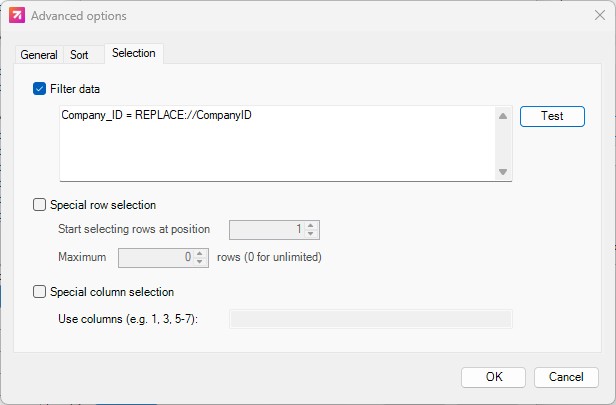
Using Variables in Filters
After retrieving the data, you can also use any defined variable inside the filter you apply. This allows you to dynamically narrow down the results based on the variable’s value, making your filters flexible and context‑aware.
On a query, click the Advanced button and go to the Selection tab. There you can set a filter much like the WHERE Clause of your query.
Automating Variable Prompts
To ensure you always verify and update variable values when opening a presentation, enable the option Always open this form with variables when opening this presentation. This ensures that your data queries are always accurate and up-to-date.
System Variables in INSYNCR
INSYNCR also supports a set of predefined system variables that can be used in your queries:
REPLACE://COMPUTERNAME
Inserts the name of the computer running the presentation. This is useful for filtering data specific to a display or device.REPLACE://USERNAME
Uses the username of the logged-in user. Ideal for personalizing content or filtering user-specific data.REPLACE://PRESENTATIONNAME
Replaces the variable with the name of the active presentation file (excluding the path and extension).REPLACE://PRESENTATIONFULLNAME
Includes the full path and extension of the active presentation file.REPLACE://PRESENTATIONPATH
Returns only the directory path of the active presentation file, excluding the filename and extension.
Benefits of Using Variables
- Efficiency: Update a single variable instead of multiple queries.
- Flexibility: Easily adapt presentations to different datasets or scenarios.
- Accuracy: Minimize errors caused by manual updates.
- Dynamic Content: Leverage system variables and shape references for real-time data integration.
Conclusion
The use of variables in the INSYNCR plugin revolutionizes how you manage data in presentations. By centralizing value updates and enabling dynamic queries, variables save time, reduce errors, and enhance the adaptability of your presentations. Whether you’re reporting on products, personalizing content, or integrating real-time data, variables are an indispensable tool for creating smarter, more efficient presentations.