 Skip to content
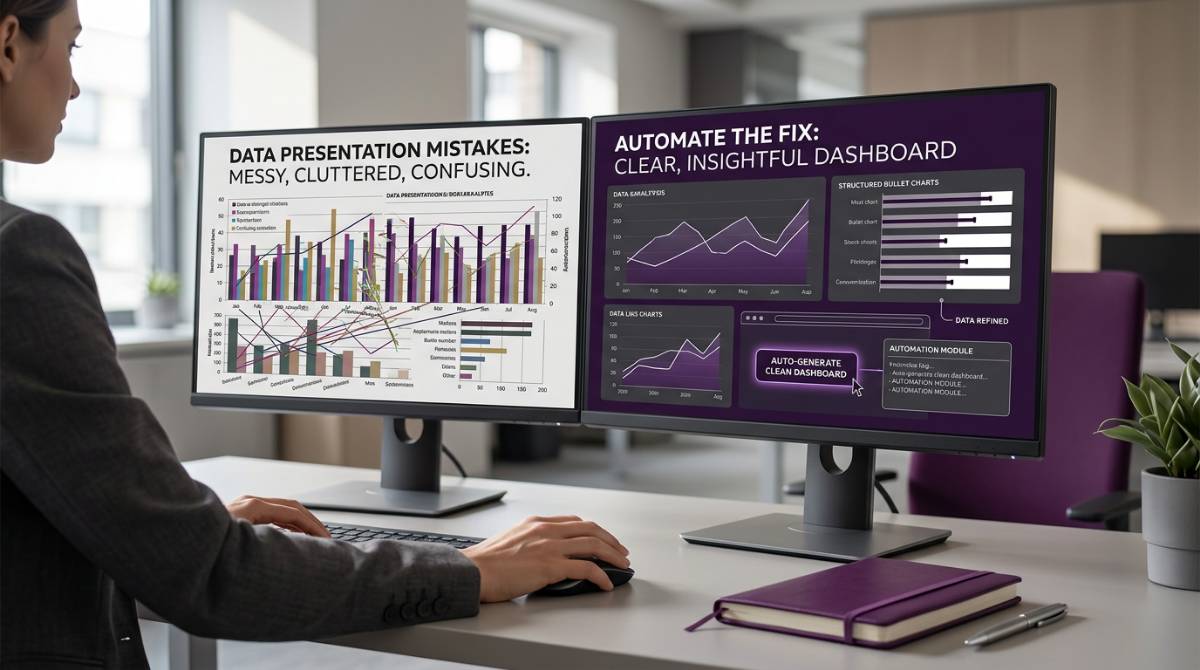
Poor data presentation leads to wrong decisions. In finance, marketing, and private equity, recurring slide decks built from Excel and BI tools form the backbone of executive communication. Yet the typical manual workflow—copying charts and tables from Excel into PowerPoint, updating KPIs every week or month—creates significant error risk. Consider a misreported Q4 2025 revenue figure in a board deck because someone forgot to paste the latest numbers into three slides. Executives approve misguided budgets, stakeholders lose trust, and the team scrambles to send “corrected” PDFs. These are classic examples of data presentation mistakes.
This article is designed for analysts, executives, and reporting teams who are responsible for preparing and presenting business data. Avoiding data presentation mistakes is critical for business decision-making because even small errors or unclear visuals can lead to misinterpretation, lost credibility, and costly decisions. Throughout this article, we will address the most common data presentation mistakes, explicitly define what constitutes a data presentation mistake, and show you how to avoid them—both through best practices and automation.
Data presentation mistakes include overwhelming audiences with too much data, using confusing 3D charts, neglecting to highlight key insights, and employing misleading scales or colors. Effective data visualizations should always be tailored to the audience’s knowledge and needs; neglecting the audience’s familiarity with visualization types can lead to confusion and miscommunication. This article will help you spot these common pitfalls, estimate the manual effort involved, and show how INSYNCR’s PowerPoint automation can prevent them.
What Is Data Presentation? (And Where It Goes Wrong in PowerPoint)
Data presentation means turning raw data from sources like Excel, SQL databases, Salesforce, or Google Sheets into visual formats—charts, tables, KPIs—and narratives within slides, dashboards, or PDF reports. In business contexts, this usually means PowerPoint, often exported to PDF or MP4 for executives and clients to review.
Definition of Data Presentation Mistakes:
Data presentation mistakes are errors or poor practices that reduce the clarity, accuracy, or impact of your data visuals. Common data presentation mistakes include overwhelming audiences with too much data, using confusing 3D charts, neglecting to highlight key insights, and employing misleading scales or colors. These mistakes can cause confusion, mislead decision-makers, and erode trust in your reporting.
Good data visualization makes patterns obvious at a glance: a clean time-series line chart showing monthly ARR from January 2023 to December 2025 tells an instant story. Bad data presentation does the opposite: a cluttered table of 200 rows dumped onto a data slide forces viewers to hunt for meaning. Most mistakes come from three sources: wrong chart choice, poor visual design, and broken or dated data caused by manual refreshes. Proper data visualization addresses all three.
It’s essential to tailor your data visualizations to your audience’s knowledge and needs. Neglecting the audience’s familiarity with data visualization types can lead to confusion, so always consider who will be viewing your slides and what context they require.

Transition:
Now that we’ve defined what data presentation is, why mistakes matter, and the importance of tailoring visuals to your audience, let’s explore how to communicate data insights effectively—turning numbers into a compelling narrative that drives business decisions.
Communicating Data Insights: Turning Numbers Into Narrative
Transforming raw numbers into a compelling story is at the heart of effective data presentation. Good data visualization is more than just making charts look attractive—it’s about helping your audience understand complex data quickly and clearly. When you present data, your goal should be to communicate insights, not just display statistics. This means every data slide should guide viewers from data points to a clear, actionable message.
Choosing the Right Chart Type
Proper data visualization starts with choosing the right chart type for your specific data. For example, a bar chart is ideal for comparing values across categories, while a line chart or line plot is best for showing trends over time. Pie charts can be effective for illustrating parts of a whole, but only when you have a limited number of categories. Using the wrong chart type or including too much data on a single slide can lead to confusing visuals and obscure your key message.
Prioritizing Clarity
To avoid common mistakes, always prioritize clarity. Limit each slide to the most important data, and use multiple visualizations only when they add value to the story. Design elements like font size, color contrast, and clear y axis labels make your charts easier to read and interpret. Avoid silly mistakes such as using too many colors, which can distract from the intended message, or misrepresenting data by manipulating scales. Double check your slides to ensure that every element supports your narrative.
Providing Context
Context is essential for effective data storytelling. Use text boxes or callouts to explain key events, highlight significant trends, or provide background that helps the audience understand why the data matters. For instance, if a line chart shows a sudden spike in sales, a brief annotation can clarify whether this was due to a product launch or a seasonal promotion. Scatter plots and other different charts can help illustrate correlations or outliers, making complex data more accessible.
Remember, your audience may not have the same familiarity with the data as you do. Tailor your presentation to their needs by focusing on what makes sense for them—highlighting only the most relevant insights and avoiding unnecessary details. The best tool for communicating data insights is a clear, well-structured visualization that tells a story and supports decision-making.
In summary, effective data presentation is about more than just displaying numbers—it’s about creating a narrative that connects data points to real-world outcomes. By using proper data visualization techniques, selecting the right chart type, and providing context, you can turn complex data into a story that resonates with your audience. Prioritize clarity, avoid common mistakes, and always keep your audience’s understanding at the center of your presentation. This approach ensures your data slides not only look professional but also deliver valuable insights that drive action.
Transition:
With these foundational principles in mind, let’s examine the most common data presentation mistakes and how to avoid them in your next report or executive deck.
Common Data Presentation Mistakes to Avoid
This section covers the typical, concrete mistakes seen in recurring monthly and quarterly reports—finance packs, marketing performance decks, investor updates. Each mistake will be described with what it looks like in a real slide, why it misleads, and how to fix or prevent it. Automation tools like INSYNCR can eliminate not just visual issues but also stale or inconsistent numbers, a category of error often forgotten in design-focused articles.
Mistake 1: Using the Wrong Chart for Your Data
A pie chart showing 10+ product categories in a 2025 revenue breakdown fails because human perception struggles to compare angles beyond six or seven slices. Similarly, using a line chart for unrelated categories like regions implies false continuity and confuses the audience.
The first step is matching chart type to data type. Use a line chart or line plot for time-series trends (monthly ARR from 2023–2025). Choose a simple bar chart for comparisons (EBITDA by business unit in FY2025). Reserve pie charts for simple “parts of a whole” with six or fewer categories. Wrong chart choice wastes meeting time because stakeholders argue about interpretation instead of decisions.
Key Fixes:
-
Match chart type to the data and the question you want to answer.
-
Use line charts for trends over time, bar charts for comparisons, and pie charts only for simple parts-of-whole with few categories.
-
Standardize chart types across recurring decks using templates.
To fix this, start from the question you want to answer: “How did revenue grow since 2024?” Then pick the chart type that answers it most directly. When different charts are template-driven and data-driven (as in INSYNCR templates), teams can standardize correct chart types across all recurring decks automatically.
Mistake 2: Overloading Slides With Too Much Data
A single slide with a dense pivot table for 36 months, 15 KPIs, and multiple visualizations on one chart creates cognitive overload. Consider a monthly marketing report for 2025 that tries to show impressions, clicks, CTR, CPC, spend, revenue, and ROAS for 12 channels on one slide. Stakeholders cannot see the main pattern quickly, leading to confusion and misinterpretation.
Key Fixes:
-
Split analysis into overview slides and appendices.
-
Show only three to five key metrics per slide.
-
Use filters to focus on specific data by region or campaign.
-
Generate filtered slides automatically for different segments.
Practical fixes include splitting analysis into overview slides plus appendices, showing only what executives need (three to five key metrics), and using filters to focus on specific data by region or campaign. Tools like INSYNCR can generate multiple filtered slides automatically—one slide per country or portfolio company—instead of cramming everything onto one slide and overwhelming the audience.
Mistake 3: Unclear Reading Flow on Data Slides
Unclear flow means the title doesn’t match the chart, multiple visualizations fight for attention, labels are tiny, and the eye doesn’t know where to look first. For instance, a Q3 2025 performance slide where the main chart sits bottom right, a key KPI floats top left, and commentary hides in small text boxes in the middle violates natural reading patterns.
Key Fixes:
-
Use a clear, outcome-focused title.
-
Place the main visual center-stage.
-
Highlight key numbers and takeaways near the chart.
-
Use consistent grids, alignment, color contrast, and font size.
Good reading flow follows this structure: a clear, outcome-focused title (“Q3 2025 revenue grew 18% driven by DACH and Benelux”), a single main visual center-stage, and highlighted key numbers with concise takeaway text near the chart. Use consistent grids, align objects, and use color contrast and font size to define hierarchy. Standardized templates in INSYNCR enforce consistent visual order, so automated updates don’t break the reading flow each month.
Mistake 4: Misleading Scales, Baselines, and Axes
Common scale issues include truncated y axis values that make a 2% churn drop look like a cliff, different scales on dual axes that suggest fake correlation, missing baselines on bar charts, and the use of the wrong scale. For example, a bar chart of quarterly revenue in 2025 starting at €40M instead of €0 visually doubles a modest 5% growth—potentially swaying investment decisions based on misrepresenting data.
Key Fixes:
-
Start bar charts at zero.
-
Annotate non-zero baselines clearly if necessary.
-
Keep scales consistent across similar charts.
-
Always check axes and scales before presenting.
Simple rules prevent this: start bar charts at zero, annotate non-zero baselines clearly if absolutely necessary, and keep scales consistent across similar charts in the same pack. Always keeping Y-axes starting at zero for bar charts ensures an honest representation of the data and helps avoid the wrong scale misleading viewers. When charts are generated from a standard template in INSYNCR, axes and baselines are locked to agreed rules, reducing accidental manipulation and ensuring the intended message comes through accurately.
Mistake 5: Misuse of Color and Decoration
Typical color problems include rainbow palettes for every category, low-contrast text displayed on similar backgrounds, too many colors across slides, and heavy 3D effects. Consider an FY2025 budget vs actual slide using different shades of blue for budget in each chart and 3D columns that distort value comparisons. This makes the graph harder to read, not easier.
Key Fixes:
-
Use a limited, brand-aligned color palette.
-
Reserve strong accent colors for key numbers or variances.
-
Avoid 3D effects and excessive decoration.
-
Ensure accessibility for colorblind viewers.
From an accessibility angle, 10–15% of viewers are colorblind, meaning red/green contrasts fail for them. Executives reviewing on mobile or printouts may miss subtle hues entirely. Simple guidelines help: use a limited palette tied to company brand, reserve strong accent colors for key numbers or variances, and avoid 3D effects. INSYNCR’s automated charts inherit shared brand themes (logos, colors, fonts), so teams don’t manually recolor or restyle charts each month—they prioritize clarity instead.
Mistake 6: Missing Context, Story, and Takeaways
Slides that show “what” but not “so what” waste executive attention. A line chart of 2023–2025 MRR with no explanation of why a spike happened in March 2025 leaves viewers guessing. Data storytelling requires context: benchmarks, targets vs actuals, prior period comparisons, and clear recommendations.
Key Fixes:
-
Use descriptive titles and subtitles that explain the key message.
-
Add short callouts for key events or changes.
-
Include reference lines for targets or benchmarks.
-
Highlight and quantify the impact of key trends.
For example, an investor update where churn improved from 6% to 4% in H2 2025 should highlight and quantify the impact on net revenue retention. Use descriptive titles and subtitles that explain the key message. Add short callouts for key events (product launch, acquisition, regulatory change). Include reference lines for targets. When slides are driven by live data, teams can easily add calculated KPIs (YoY %, budget variance) inside INSYNCR so context stays up to date without extra manual work.
Mistake 7: Outdated or Inconsistent Numbers From Manual Updates
Consider this scenario: a monthly finance pack in January 2026 still shows November 2025 numbers because one analyst forgot to paste updated Excel data into 20 slides. Or net debt on the summary slide doesn’t match the detail slide because only one chart was refreshed. These silly mistakes are rarely visible in design-focused articles but are critical—the data is technically well-visualized but simply wrong.
Key Fixes:
-
Bind each chart and text element to a single, live data source.
-
Automate data refreshes to eliminate manual copy-paste.
-
Review all numbers for consistency before publishing.
The impact includes credibility loss with the board, rework during meetings, and follow-up emails with “corrected” PDF versions. This is exactly the category of mistake that INSYNCR eliminates by binding each chart and text element to a single, live data source.
Transition:
By understanding and addressing these common mistakes, you can dramatically improve the clarity and impact of your data presentations. Next, let’s look at the hidden costs of manual data presentation work and how automation can help.
The Hidden Cost of Manual Data Presentation Work
Consider an FP&A team preparing a monthly 50-slide performance deck for a company with six business units across EMEA, US, and APAC. Each analyst spends eight to twelve hours per cycle copying data from Excel, updating charts, checking links, and reformatting, mirroring the broader inefficiencies of manual data-to-presentation workflows. For quarterly board packs or investor reports, this easily exceeds 40–60 person-hours across the team.
Typical manual steps include exporting from BI tools, refreshing pivot tables, creating CSV files, copy-pasting into PowerPoint, adjusting fonts and colors, and finally running a double check on all numbers. Each step introduces error risk: version confusion, wrong filters applied, forgotten pages, formulas not dragged correctly. For the Q1 2026 board report, these risks compound significantly when deadlines tighten.

Transition:
Manual workflows not only waste valuable time but also increase the risk of errors and inconsistencies. Let’s explore the broader disadvantages of manual, slide-by-slide data presentation and how automation can address these challenges.
Disadvantages of Manual, Slide-by-Slide Data Presentation
Beyond time consumption, manual workflows create structural problems for reporting teams. Senior analysts who should focus on analysis spend hours formatting slides instead—a significant waste of expertise that modern reporting automation solutions are designed to eliminate. Error rates spike when numbers change at the last minute; an updated December 2025 close means re-running dozens of manual steps under pressure.
Customization becomes nearly impossible. Creating variants for different audiences—per portfolio company, per region—requires duplicating manual work. Branding inconsistencies emerge when multiple team members tweak layouts and colors differently. Handovers become painful: new team members must learn dozens of undocumented manual steps instead of using a robust template or drawing on centralized automation-focused reporting resources. These disadvantages scale with organization size and reporting frequency. Weekly reports in large teams become almost unmanageable without automation.
Transition:
Given these challenges, it’s important to understand how much of your data presentation workflow can be automated—and what benefits automation brings.
How Much Work Can Be Automated? (Typical Time Savings)
Most recurring data presentations follow patterns: same slides and logic every week, month, or quarter, with new data points. For stable reports like monthly management packs, 70–90% of slide updates (numbers, charts, tables) can be automated, as shown in real-world INSYNCR automation success stories. Time per cycle can drop from approximately ten hours to less than one hour of review and commentary.
Consider a marketing team producing a 30-slide ROAS and funnel report for 15 markets each month in 2025–2026. Automation can mass-generate 15 local variants overnight instead of requiring manual creation of each. What still needs humans? Defining the story, writing commentary, challenging statistics, and deciding what to highlight. Automation handles the essential data work; humans provide the insights.
Transition:
With automation handling repetitive tasks, let’s see how INSYNCR specifically helps you avoid data presentation mistakes and deliver more reliable, impactful reports.
How INSYNCR Helps You Avoid Data Presentation Mistakes
INSYNCR is a PowerPoint plugin focused on automating recurring, data-heavy reports and presentations—not a standalone BI tool that replaces your existing stack. The plugin connects slides directly to live data sources: Excel files, SQL databases, Salesforce, Google Sheets, JSON/XML feeds, and more, following best practices similar to those covered in its PowerPoint data-integration software guides.
Every chart, table, and text placeholder can be bound to data, so updating a report for a new period (March 2026, for instance) is a one-click refresh rather than hours of copy-paste. INSYNCR works within standard PPTX files, making it easy to export to PDF and MP4 or share with colleagues who only have PowerPoint. Your presentation stays readable and accessible across all formats.
Automation Advantages: From Live Data to Branded, Error-Free Slides
INSYNCR’s automation directly addresses the mistakes covered earlier. Consistent chart types and scales are defined once in a template and reused across all future decks, eliminating chart type confusion. No stale numbers appear because slides refresh from the current data source automatically, reducing inconsistent or outdated figures.
Automatic conditional formatting highlights underperforming KPIs in red and overachievement in green, driven by rules you create. In-slide filtering lets you generate one template and filter by business unit, region, or portfolio company without duplicating manual work. Bulk report generation creates dozens or hundreds of personalized PPTX, PDF, or MP4 reports in a single run—imagine a private equity firm creating quarterly 2025 reports for 20 portfolio companies in minutes rather than days. Automation doesn’t replace storytelling; it creates reliable building blocks so analysts can focus on important information and communicate data effectively.
Team Licensing and Roles: Automator vs Viewer
INSYNCR uses team-based licensing to fit real workflows. Automators are power users who design templates, wire up data connections, and define business logic. Viewers are colleagues who open, refresh, filter, and export ready-made templates without touching the data model, as outlined in the INSYNCR FAQ on licensing and roles.
This structure supports governance: fewer people edit data logic, more people safely consume and adapt slides. For example, a central FP&A team of two to three Automators provides standardized templates to 15–20 business controllers as Viewers across regions. This reduces accidental structural changes and helps prevent new presentation mistakes from creeping back in, especially when supported by a comprehensive INSYNCR help center. The tool becomes the best tool for maintaining consistency at scale.
Transition:
Whether you use automation or not, following practical tips can help you avoid the most common data presentation mistakes. Here’s a quick reference to guide your next report.
Practical Tips to Improve Your Next Data Presentation
Quick Reference Table: Data Presentation Tips
Before diving into the detailed table, here are some quick bullet-point tips to keep in mind:
-
Start with the decisions your audience needs to make.
-
Limit to 1–2 main charts per slide.
-
Standardize colors and chart types for recurring KPIs.
-
Write titles that state conclusions.
-
Check axes, scales, and totals before presenting.
-
Convert recurring reports into templates.
-
Pilot these tips on an upcoming report cycle—your next monthly performance review or Q2 2026 board pack makes sense as a starting point.
| Tip | Why It Matters |
|---|---|
| Start with decisions your audience needs to make | Keeps every slide focused on outcomes |
| Limit to 1–2 main charts per slide | Reduces cognitive load, improves clarity |
| Standardize colors and chart types for recurring KPIs | Creates instant visual recognition |
| Write titles that state conclusions | Helps audience understand the point immediately |
| Check axes, scales, and totals before presenting | Catches confusing visuals and scale errors |
| Convert recurring reports into templates | Eliminates repeated manual work |
Transition:
To wrap up, let’s summarize the most common data presentation mistakes and how to avoid them, so you can reference this checklist before your next report.
Summary Checklist: Common Data Presentation Mistakes and How to Avoid Them
Use this checklist to quickly review your slides and ensure you’re avoiding the most frequent pitfalls:
-
Overwhelming audiences with too much data:
-
Limit each slide to 3–5 key metrics or visuals.
-
Split complex analysis into overview and appendix slides.
-
-
Using confusing 3D charts:
-
Avoid 3D effects and stick to simple, flat chart designs.
-
Use clear, accessible color palettes.
-
-
Neglecting to highlight key insights:
-
Write descriptive, outcome-focused titles.
-
Use callouts or annotations to explain important trends or events.
-
-
Employing misleading scales or colors:
-
Start bar charts at zero and keep scales consistent.
-
Use color intentionally to highlight, not distract.
-
-
Failing to tailor visuals to the audience:
-
Consider your audience’s familiarity with chart types and data.
-
Provide context and explanations as needed.
-
-
Allowing outdated or inconsistent numbers:
-
Automate data refreshes and bind visuals to live data sources.
-
Double-check all numbers for consistency before publishing.
-
Reference:
Common data presentation mistakes include overwhelming audiences with too much data, using confusing 3D charts, neglecting to highlight key insights, and employing misleading scales or colors.
Conclusion and Next Steps
Most data presentation mistakes are predictable and repeatable, which means they can be designed away and automated. Good data presentation combines clear visuals, honest scales, focused messages, and reliable, up-to-date data. INSYNCR connects live data to professional, branded PowerPoint templates, reduces manual errors, and frees teams to focus on analysis rather than formatting.
Try a free 7-day INSYNCR trial on a real recurring report—your next monthly management pack, for figure—and measure time saved and error reduction yourself. If you have questions or want to discuss a specific reporting setup, you can reach the team via the INSYNCR contact page. Visit insyncr.com to get started.