 Skip to content
Three ways Excel data gets into PowerPoint
- Copy and paste. Fast once, wrong by the second cycle. Nothing knows where the number came from.
- Paste link. PowerPoint's own linking. Works for charts on one machine until the file moves, and never works for text boxes or tables with rules.
- Bind. An add in ties each shape to a cell, range or column and refreshes it on demand. This is what INSYNCR does.
Binding a slide to a sheet
Connect the workbook
Excel on your PC, on a network drive, or Excel Online in SharePoint. INSYNCR reads the sheets and named ranges; you pick the one the slide needs.
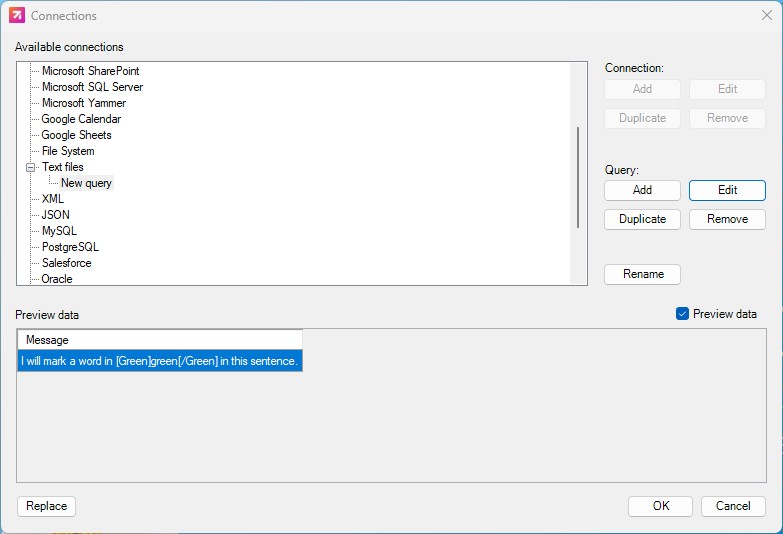
Bind text, charts and tables
A text box takes a cell. A chart takes a range and keeps your PowerPoint chart formatting, not Excel's. A table takes a range and grows or shrinks with the rows.
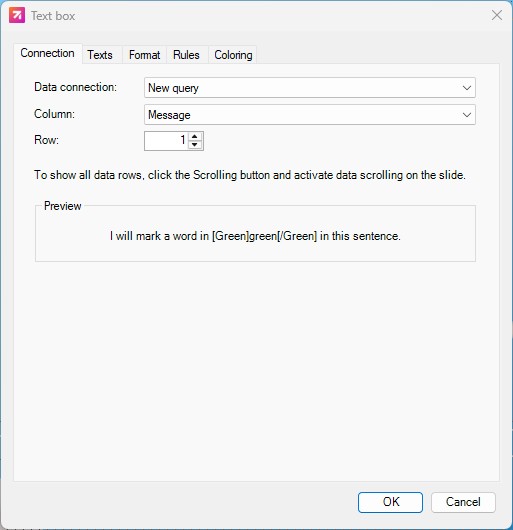
Style by value
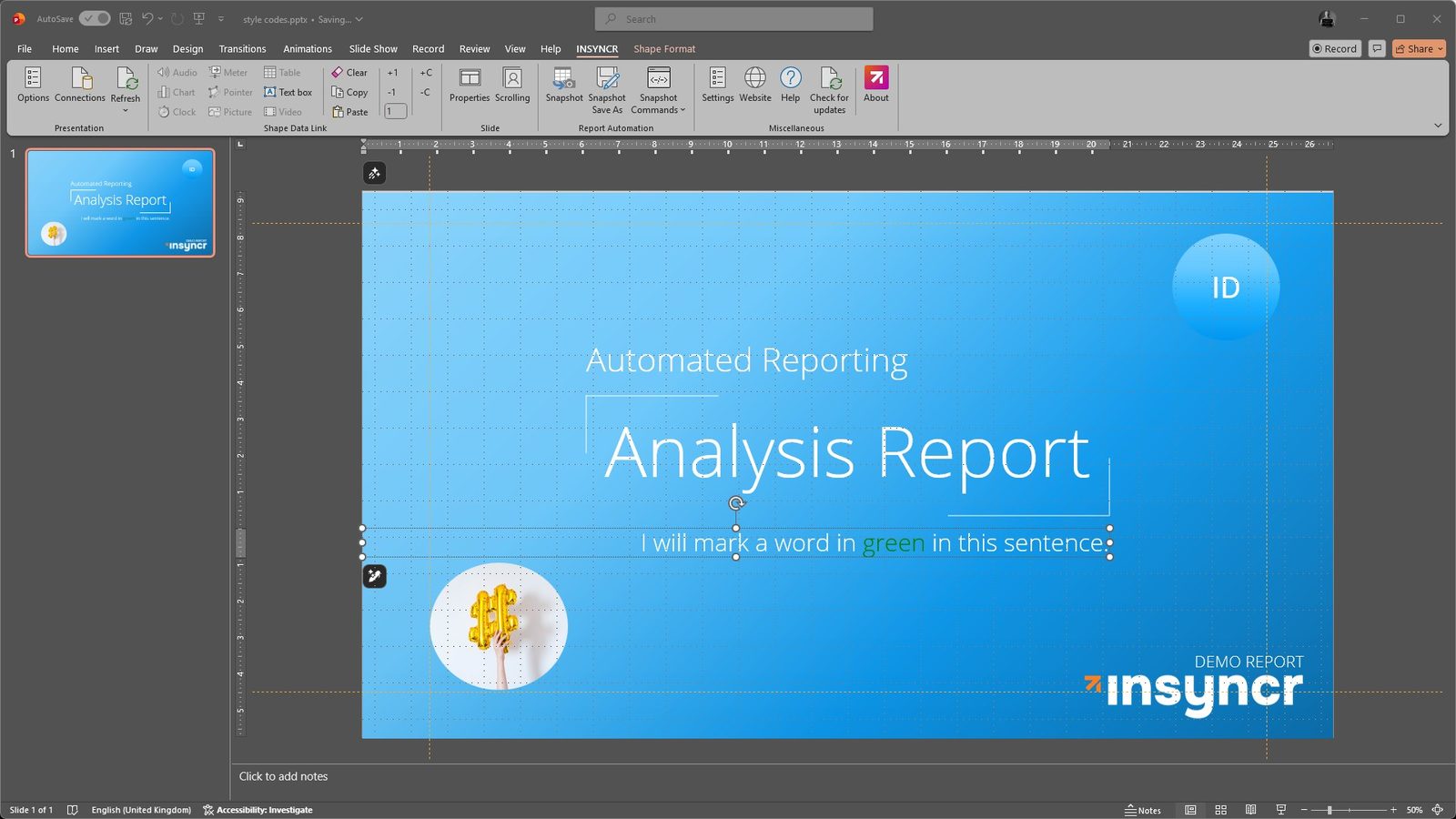
Conditional formatting sets colors, fonts and chart series by rule. Style codes let the sheet itself say how a value should look.
Generating many slides, or many decks
This is the part copy and paste cannot do at all. With Snapshot, one slide becomes one slide per row: one per client, one per store, one per student. Snapshot Save As writes one file per record instead, in PowerPoint, PDF or MP4, named by a column you choose. The public example on the site is a 250 slide graduation deck generated in seconds.
Refreshing, and who presses the button
The person who built the links is the Automator. Everyone else who opens the deck and presses Refresh is a Viewer. A Viewer seat is 27 euros a month, billed annually; it needs one Automator license in the team. That split is why a bound deck can be handed to a colleague without handing over the workbook.
A bound deck is only as good as the sheet. Named ranges beat cell addresses (they survive inserted rows), one row per record beats merged cells, and a column for the file name saves an afternoon later.