Skip to content


Dynamic Style Codes in PowerPoint — A Practical Guide for INSYNCR Users
Dynamic presentations aren’t just about updating numbers or text. With INSYNCR, you can also automate the visual formatting of your slides using dynamic style codes. These codes let your data control how text appears — colors, font weight, bullets, and more — without manual editing.
This guide walks you through what style codes are, how they work, and how to use them inside your PowerPoint templates.
What Are Dynamic Style Codes?
Dynamic style codes are small text markers you add to your data source. When INSYNCR updates your slide, these markers tell PowerPoint how the text should look.
For example, your data might contain:
[Red]Low stock[/Red]
INSYNCR reads the code and formats the text in red automatically.
This means:
- No more manual formatting
- No more inconsistent slides
- Your data decides the styling
Where Can You Use Style Codes?
You can apply style codes to any INSYNCR-connected text element, such as text boxes, tables and placeholders.
If INSYNCR can update it, you can style it.
Supported Style Codes
Here are the most commonly used formatting options.
Note that the style codes are case-sensitive!
Text Color
[Red]Urgent[/Red]
[Green]OK[/Green]
[#ff9900]Warning[/#ff9900]
You can use named colors or hex codes.
Note that named colors are case-sensitive.
Background Color
[Background=#FFFF00]BG TEST (Yellow)
This code will set the textbox’s background color to yellow, which corresponds to #FFFF00.
Bold, Italic, Underline
[b]Important[/b]
[i]Note[/i]
[u]Link[/u]
These can be combined:
[b][Red]Critical[/Red][/b]
Superscript
Sometimes you want to put a text as superscript text.
Use a syntax like:
e=mc[super]2[/super]
to show it as
e=mc2
Bullet points
Use a style code notation to get lists with bullet points from your database. Use the syntax like:
[li]item1

item2

item3[/li]
to get:
item1
item2
item3
Line break or New line
Do you want to add a new line or line break to your text? Add the short code [lb] to your data and INSYNCR will start a new line in your text.
line1[lb]line2[lb]line3
to get:
line1
line2
line3
Font
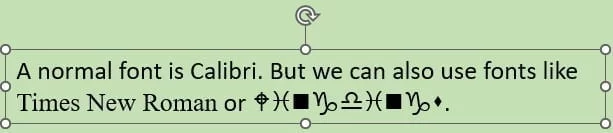
Do you want to format a specific word or line in a different font? Or maybe do you want to control the font of a textbox or tables dynamically by using it at your data store? Use the short code [Font={fontname}] to your text and close this font use with [/Font={fontname}]. All characters in between those 2 short codes will be set to that specific font.
A normal font is Calibri. But we can also use fonts like [Font=Times New Roman]Times New Roman[/Font=Times New Roman] or [Font=Wingdings]Wingdings[/Font=Wingdings].
Font Size
And like changing a font, you can also set a font size in a very similar way.
[FontSize=24]Headline[/FontSize=24]
[FontSize=12]Small text[/FontSize=12]
How INSYNCR Processes Style Codes
When INSYNCR updates your slide:
- It reads the raw text from your data source
- It detects any style codes
- It applies the formatting directly in PowerPoint
- It removes the codes so only styled text remains
This keeps your slides clean and professional.
Example: Dynamic Status Dashboard
Imagine a data source with a “Status” column:
| Item | Status |
|---|---|
| Server A | [Green]Online[/Green] |
| Server B | [Red][b]Offline[/b][/Red] |
| Server C | [Orange]Maintenance[/Orange] |
INSYNCR will automatically format each status in the correct color and style.
Your slide updates itself — no manual formatting needed.
How to Use Style Codes in Your Own Slides
Step 1 — Add style codes to your data
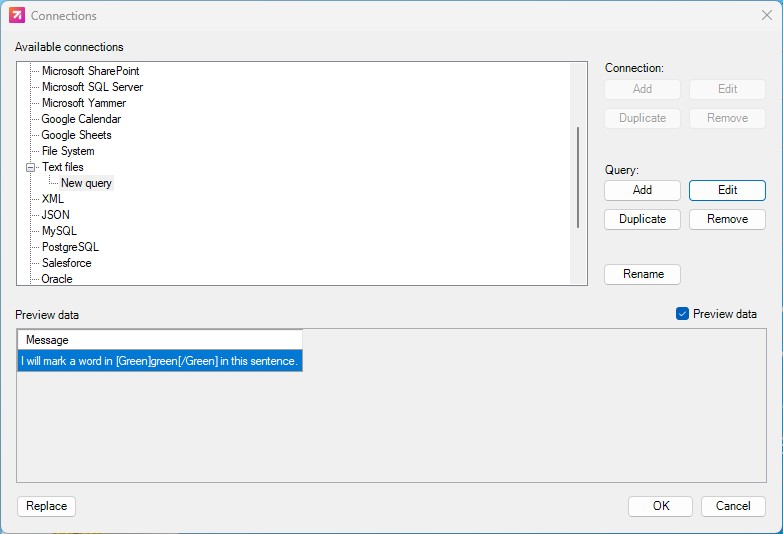
Insert the codes directly into your Excel, Google Sheets, database, or API output fields that INSYNCR will read. In the screenshot below, you see a connection to a text file and it is returning one row with and style code instruction embedded.
Step 2 — Enable Style Code Processing
For performance reasons, style code processing in INSYNCR is turned off by default. This ensures that large datasets or frequently refreshing presentations stay fast and responsive. If you want INSYNCR to interpret and apply style codes from your data, you’ll need to enable this manually. Go to Options → Style Codes and check the specific formatting features you want to activate. Once enabled, INSYNCR will process the codes during each refresh and apply the corresponding formatting to your PowerPoint elements.

Step 3 — Connect your text element in PowerPoint
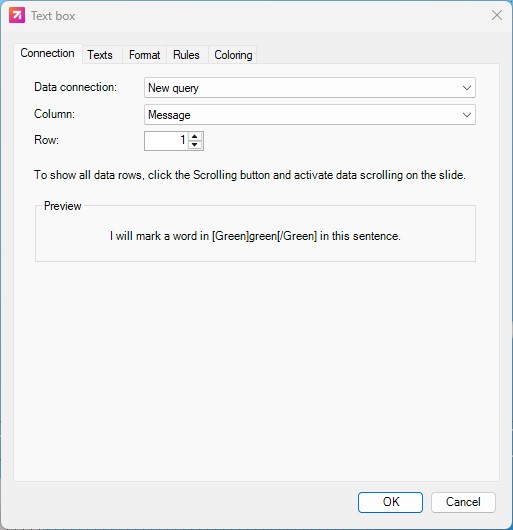
Use INSYNCR to bind the text box, or table cell to your data field that contains the style codes.
Make sure to tick the option “Use style codes” so INSYNCR knows it should interpret and apply the formatting instructions from your data.

Step 4 — Refresh your slide
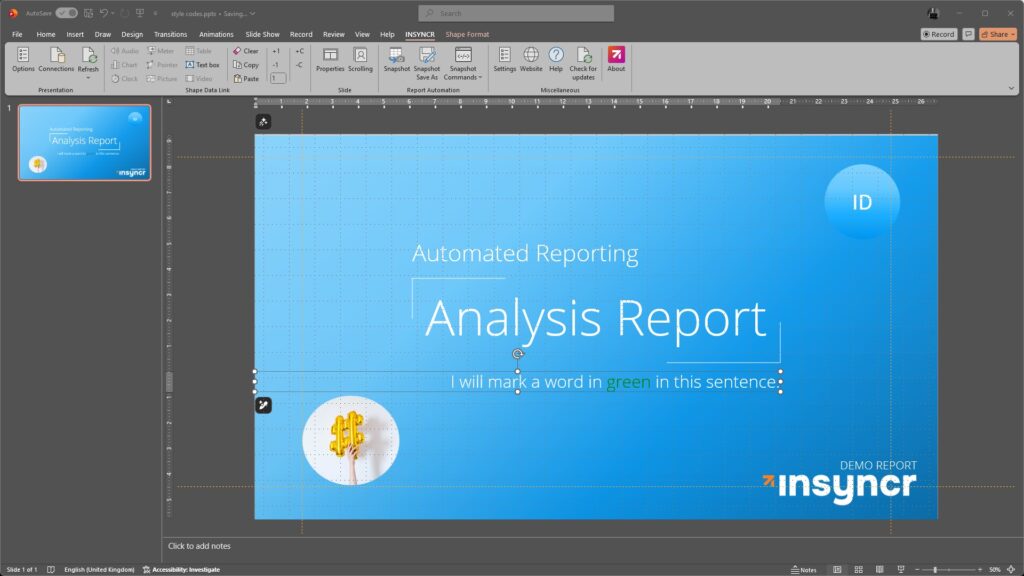
Run an INSYNCR refresh. The text will update and the formatting will be applied automatically.
Step 5 — Adjust your template if needed
You can still control:
- Default fonts
- Default colors
- Layout
- Spacing
INSYNCR only overrides what you specify in the style code.
Best Practices
- Keep codes simple and consistent across all your data sources
- Use hex colors for precise brand styling
- Avoid over-nesting too many styles inside each other
- Test with sample data before rolling out to production
- Use style codes to highlight what matters most, like alerts, deadlines, or statuses
Final Thoughts
Dynamic style codes give you a powerful way to make your PowerPoint presentations smarter, cleaner, and more automated. Whether you’re building dashboards, schedules, or reports, INSYNCR helps you keep everything visually consistent — driven directly by your data.
As you build out your next INSYNCR project, start small: add a few style codes to a test slide and see how much time you can save by letting your data control the design.